Automations
An automation consists of a package that includes approved executable scripts (referred to as actions) and configurations that determine when and how these scripts are executed on an endpoint device. Actions can be triggered automatically when a sensor is activated, manually by the end user, or by a SysTrack Administrator.
Each automation contains one or more actions. Actions are executable files and can include batch scripts, PowerShell scripts, JavaScript files, or Node scripts. The endpoint device must support the execution of these script types.
Automations View
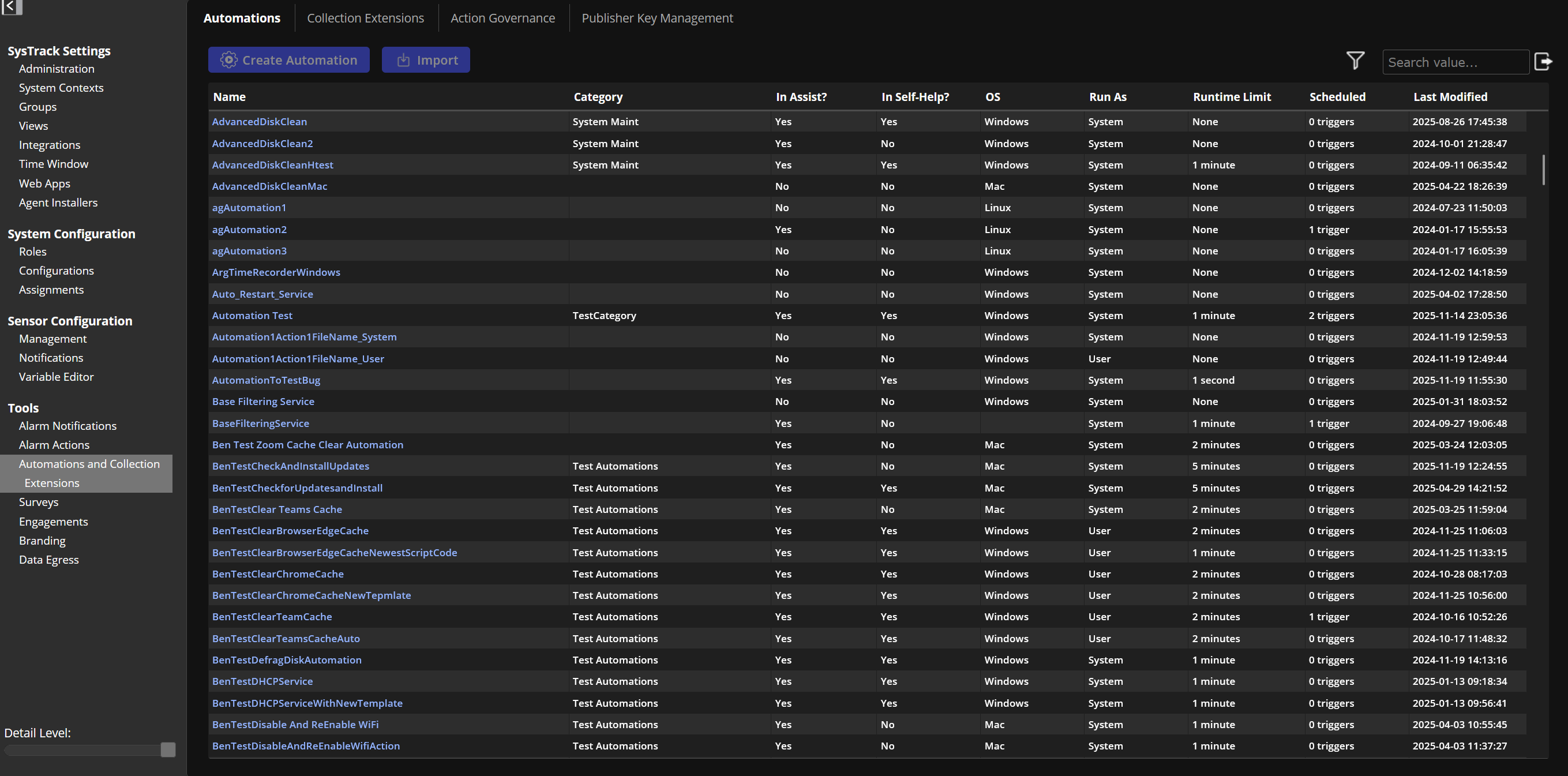
This is a table view which includes the metadata in the following columns:
| Column Name | Description |
|---|---|
| Name | A customer defined name of the automation. |
| Category | The category of the automation. |
| In Assist? | Information on whether the automation is available from Assist. |
| In Self-Help? | Information on whether the automation is available from Self-Help. |
| OS | Operating system that the automation supports. |
| Run As | Information on whether the automation runs as user or system. |
| Runtime Limit | The configured run time limit. |
| Scheduled | The number of triggers associated with the automation (tool schedules). |
| Last Modified | The date and time when the automation was last updated. |
You can search, filter, or sort by column.

You can click an automation in the table to see the detailed view.
Detailed View
In the upper right, you can click to edit the automation, export it, or delete it.
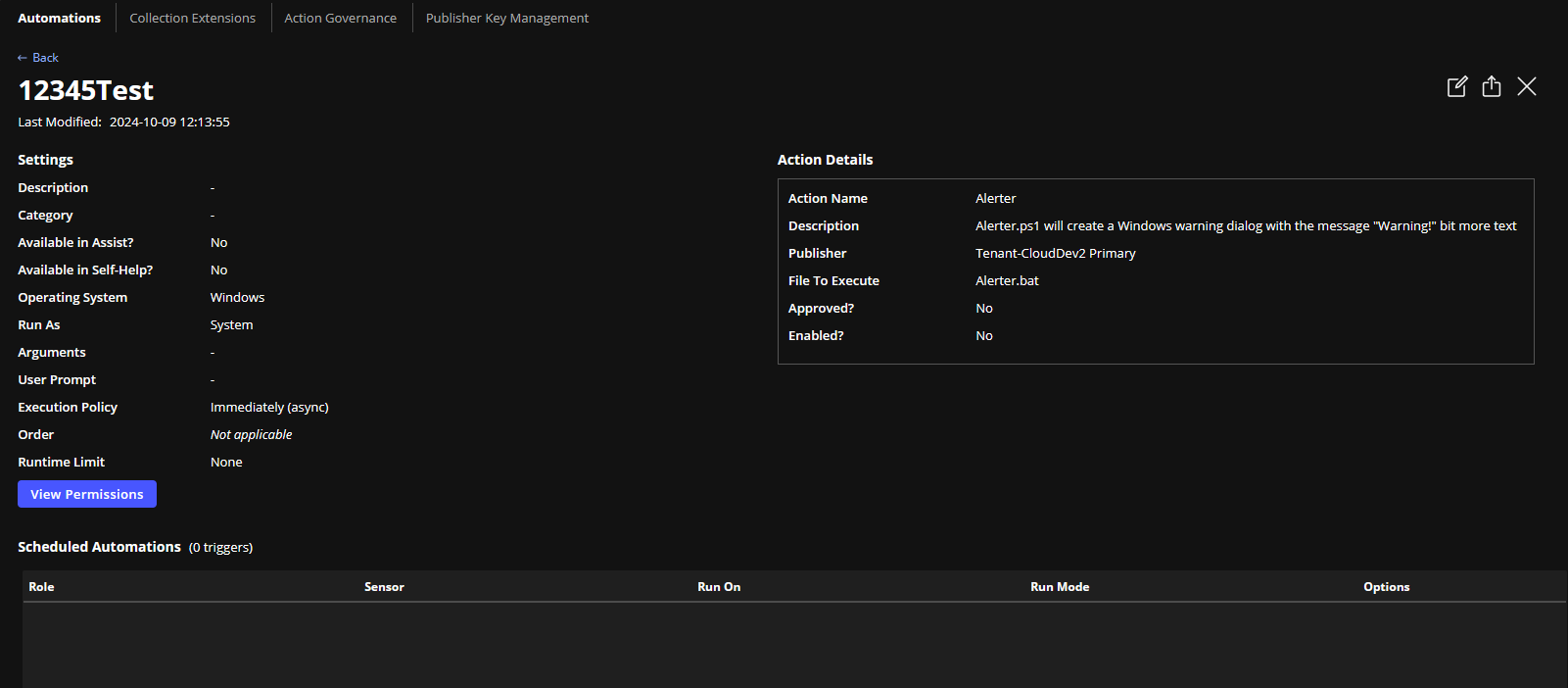
It includes the settings, details, scheduled automations by role, sensor, how it runs, and options.
You can click View Permissions to review the permissions that are assigned to the automation.
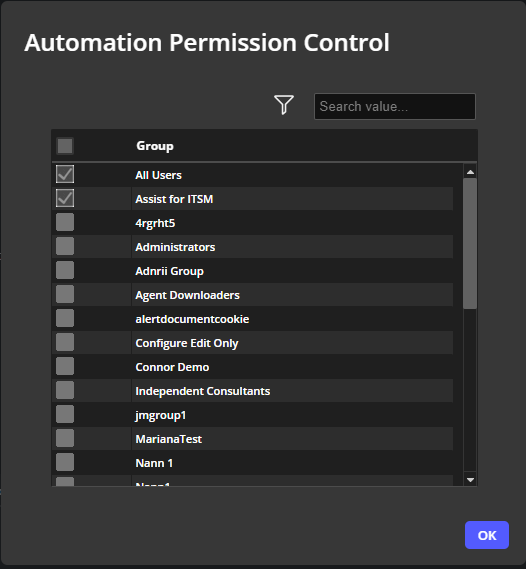
For version 11.1, all permissions will be automatically enabled for every group where the automation currently exists. For any new automations created after the 11.1 release, you will need to manually configure the permissions.
In the Permission Controls section, a default setting will be available for Assist for ITSM. If you use ServiceNow and want the group to appear under Assist for ITSM, you must enable the corresponding permission by selecting the checkbox.
The Scheduled Automations section displays the role to which a schedule is applied, the relationship between automations, and the sensors that trigger them. You can view the associated role in the Configure section, or access the linked sensor in the Prevent section.
On This Page